Need to clear your browser cache? Browser cache stores temporary files from websites you visit. While this speeds up loading times, a full or corrupted cache can cause websites to display incorrectly, load slowly, or show outdated content. Clearing your cache is a simple fix for many browsing problems.
In this guide, we'll show you how to clear cache in every major browser — Chrome, Firefox, Safari, and Edge — on both computer and phone.

Why Should You Clear Your Browser Cache?
- Fix website display problems — pages showing old or broken content
- Speed up your browser — remove bloated temporary files
- Fix login issues — corrupted cookies preventing sign-in
- Free up disk space — cache can grow to several gigabytes
- Privacy — remove traces of websites you've visited
- See website updates — load the latest version of web pages
Clear Cache in Google Chrome
On Computer (Windows/Mac):
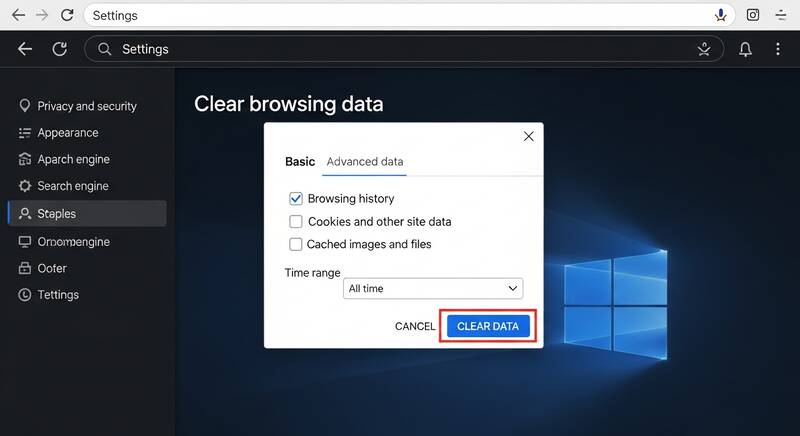
- Open Chrome and press Ctrl + Shift + Delete (Windows) or Command + Shift + Delete (Mac)
- Or go to ⋮ menu → More tools → Clear browsing data
- Set Time range to "All time"
- Check these boxes:
- Browsing history
- Cookies and other site data
- Cached images and files
- Click "Clear data"
On Android:
- Open Chrome → tap ⋮ menu → Settings
- Tap Privacy and security → Clear browsing data
- Select "All time"
- Check all boxes and tap "Clear data"
On iPhone:
- Open Chrome → tap ⋯ menu → Settings
- Tap Privacy and Security → Clear Browsing Data
- Select items to clear and tap "Clear Browsing Data"
Clear Cache in Mozilla Firefox
On Computer:
- Press Ctrl + Shift + Delete (Windows) or Command + Shift + Delete (Mac)
- Or go to ☰ menu → Settings → Privacy & Security
- Scroll to "Cookies and Site Data"
- Click "Clear Data"
- Check "Cached Web Content"
- Click "Clear"
On Phone:
- Tap ⋮ menu → Settings → Delete browsing data
- Check "Cache" and other desired options
- Tap "Delete browsing data"
Clear Cache in Safari
On Mac:
- Open Safari → click Safari menu → Settings (or Preferences)
- Go to the Advanced tab
- Check "Show Develop menu in menu bar"
- Close Settings
- Click Develop menu → Empty Caches
Alternative method: Go to Safari → Clear History → select time range → click "Clear History" (this clears cache, history, and cookies together).
On iPhone/iPad:
- Open Settings app (not Safari)
- Scroll down and tap Safari
- Tap "Clear History and Website Data"
- Tap "Clear History and Data" to confirm
Clear Cache in Microsoft Edge
On Computer:
- Press Ctrl + Shift + Delete
- Or go to ⋯ menu → Settings → Privacy, search, and services
- Under "Clear browsing data," click "Choose what to clear"
- Set Time range to "All time"
- Check:
- Cached images and files
- Cookies and other site data
- Click "Clear now"
Quick Reference: Cache Clearing Shortcuts
| Browser | Windows Shortcut | Mac Shortcut |
|---|---|---|
| Chrome | Ctrl + Shift + Delete | Cmd + Shift + Delete |
| Firefox | Ctrl + Shift + Delete | Cmd + Shift + Delete |
| Edge | Ctrl + Shift + Delete | Cmd + Shift + Delete |
| Safari | N/A | Develop → Empty Caches |
How to Hard Refresh (Without Clearing All Cache)
If you just need to reload one page without using cached files:
- Windows: Press Ctrl + F5 or Ctrl + Shift + R
- Mac: Press Command + Shift + R
A hard refresh forces the browser to download the latest version of the current page without clearing your entire cache.
What Happens When You Clear Cache?
- Websites may load slower initially (they'll speed up after revisiting)
- You may be logged out of websites (if you cleared cookies)
- Website preferences may be reset
- Your bookmarks and saved passwords are NOT affected
- Download history is NOT affected unless you specifically clear it
FAQ
How often should I clear my cache?
For most users, once a month is sufficient. Clear it more often if you browse heavily, experience website issues, or want to maintain privacy.
Does clearing cache delete passwords?
No. Clearing cache removes temporary files and images. Your saved passwords are stored separately. However, if you also clear cookies, you'll be logged out of websites.
Will clearing cache speed up my browser?
Yes, clearing cache can speed up a slow browser, especially if the cache has grown very large. After clearing, pages may load slower on the first visit but will normalize quickly.
Conclusion
Clearing your browser cache is a simple maintenance task that fixes many common browsing problems. The keyboard shortcut Ctrl + Shift + Delete (or Command + Shift + Delete on Mac) works in Chrome, Firefox, and Edge. For a quick single-page fix, use Ctrl + F5 for a hard refresh. Make it a habit to clear your cache regularly for the best browsing experience!