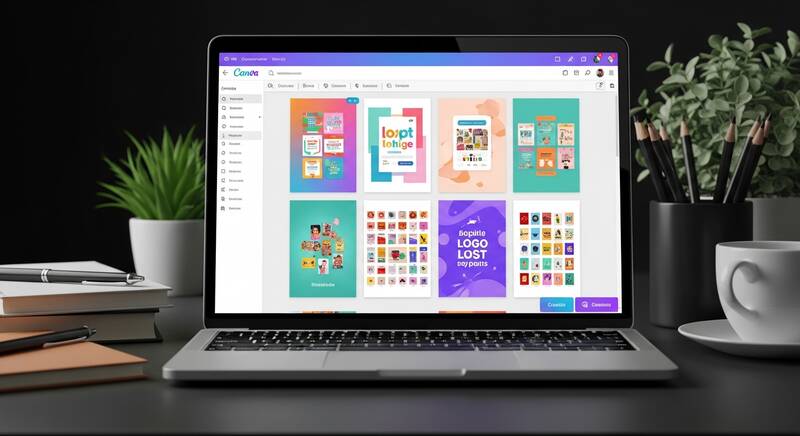
Want to create stunning graphics without paying for expensive design software? Canva is the world's most popular free graphic design tool used by over 170 million people. You don't need any design experience — Canva makes it easy for anyone to create professional-looking designs in minutes.
In this guide, we'll show you how to use Canva for free, what features are available without a subscription, and how to create amazing designs without spending a single rupee.

What Is Canva?
Canva is a free online graphic design platform that lets you create:
- Social media posts — Instagram, Facebook, Twitter, LinkedIn
- YouTube thumbnails and channel art
- Presentations — like PowerPoint but easier
- Logos and brand materials
- Resumes and cover letters
- Posters, flyers, and banners
- Business cards
- Video editing — basic video creation
- Invitations — wedding, birthday, events
- Documents — reports, letters, certificates
How to Create a Free Canva Account
- Go to canva.com
- Click "Sign up"
- Sign up using:
- Google account (fastest method)
- Facebook account
- Email address
- Apple ID
- Choose what you'll use Canva for (Personal, Student, Teacher, Business, etc.)
- Your free account is ready!
Canva is also available as an app — download it from Google Play Store or Apple App Store for designing on your phone.
Canva Free vs Canva Pro: What Do You Get for Free?
| Feature | Canva Free | Canva Pro ($12.99/mo) |
|---|---|---|
| Templates | 250,000+ free templates | 610,000+ premium templates |
| Photos & Graphics | 1 million+ free stock photos | 100 million+ premium photos |
| Cloud Storage | 5 GB | 1 TB |
| Background Remover | Not available | Available |
| Brand Kit | Not available | Available |
| Magic Resize | Not available | Available |
| Custom Fonts Upload | Not available | Available |
| Download as PNG/JPG/PDF | Available | Available |
| Transparent Background | Not available | Available |
| AI Tools | Limited | Full access |
| Collaboration | Available | Available |
Good news: The free version of Canva is incredibly powerful and more than enough for most people's design needs!
How to Create Your First Design in Canva
Step 1: Choose a Design Type
- Log in to canva.com
- On the home page, you'll see popular design types:
- Instagram Post (1080 x 1080 px)
- Presentation (16:9)
- YouTube Thumbnail (1280 x 720 px)
- Facebook Post
- Logo
- Resume
- Click on the design type you need
- Or click "Custom size" to enter your own dimensions
Step 2: Choose a Template
- After selecting your design type, Canva shows hundreds of free templates
- Templates with a crown icon (👑) are Pro-only — skip those
- Click on any free template to start with it
- Or start with a blank canvas to design from scratch
Step 3: Customize Your Design
Now the fun part — make it your own:
- Click any text to edit it — change the wording, font, size, and color
- Click any image to replace it — use Canva's free stock photos or upload your own
- Change colors — click any element and change its color to match your brand
- Add new elements — from the left sidebar, add shapes, icons, lines, stickers
- Drag and drop — move elements around until your design looks perfect
Step 4: Download Your Design
- Click the "Share" button (top right)
- Click "Download"
- Choose file type:
- PNG — best quality for images (recommended)
- JPG — smaller file size, good for photos
- PDF Standard — for documents and printing
- PDF Print — high quality for professional printing
- MP4 — for video and animated designs
- Click "Download" — it's free!
10 Best Things You Can Create on Canva for Free
1. Instagram Posts & Stories
Search for "Instagram Post" and choose from thousands of free templates. Perfect for personal accounts, businesses, and influencers. Change text, colors, and images to match your style.
2. YouTube Thumbnails
Create eye-catching thumbnails that get clicks. Search "YouTube Thumbnail" — Canva has the perfect 1280x720 pixel size ready. Add bold text, your photo, and colorful backgrounds.
3. Presentations
Forget boring PowerPoint slides. Canva has beautiful presentation templates for school, work, and business. You can even present directly from Canva or download as PPT.
4. Resumes
Create a professional resume that stands out. Canva has modern resume templates that you can customize with your information and download as PDF.
5. Logos
Design a basic logo for your brand, YouTube channel, or business. While free templates are available, keep in mind that truly unique logos may need more customization.
6. Business Cards
Design professional business cards and download them for printing. Choose from hundreds of free templates and customize with your details.
7. Facebook Posts & Covers
Create engaging Facebook posts and cover photos with the correct dimensions. Canva automatically sizes everything perfectly.
8. Posters & Flyers
Design event posters, sale flyers, and promotional materials. Great for school projects, events, and small businesses.
9. Invitations
Create beautiful wedding invitations, birthday party invites, baby shower cards, and event invitations. Free templates look professional and elegant.
10. Certificates
Design certificates for courses, achievements, appreciation, and events. Perfect for teachers, trainers, and organizations.
Essential Canva Tips for Beginners
1. Use the Search Bar
The search bar is your best friend. Search for any element — "arrow", "business", "flower", "icon" — and Canva will show you thousands of free options.
2. Use Free Stock Photos
Click "Elements" → "Photos" in the left sidebar. Canva has over 1 million free photos. Filter by topic, color, or style.
3. Copy Page Styles
If you like a page's design, click "Duplicate page" to create a copy. Then just change the text and images for consistency across multiple designs.
4. Use Keyboard Shortcuts
| Shortcut | Action |
|---|---|
| Ctrl + C / Ctrl + V | Copy and paste elements |
| Ctrl + Z | Undo last action |
| Ctrl + D | Duplicate selected element |
| Ctrl + G | Group selected elements |
| Delete | Remove selected element |
| Ctrl + A | Select all elements |
5. Align Elements Properly
Canva shows pink alignment lines when you drag elements. Use these to center and align items perfectly for a professional look.
6. Use Consistent Colors
Pick 2-3 colors and use them throughout your design. Click the color picker and save your favorite colors for quick access.
7. Upload Your Own Images
Click "Uploads" in the left sidebar and drag your own photos, logos, or graphics into Canva. You get 5 GB of free upload storage.
How to Get Canva Pro Features for Free
While we respect Canva's pricing, here are some legitimate ways to access premium features:
- Canva for Education: Students and teachers get Canva Pro for free. Sign up at canva.com/education with your school email.
- Canva for Nonprofits: Registered nonprofits can apply for free Canva Pro at canva.com/canva-for-nonprofits.
- 30-Day Free Trial: Canva offers a 30-day free trial of Canva Pro. Cancel before the trial ends to avoid charges.
- Canva Teams Free Trial: Get a free trial with even more collaboration features.
Free Alternatives to Canva Pro Features
Need features that Canva Free doesn't offer? Try these free alternatives:
- Background Remover: Use remove.bg (free for standard quality images)
- Magic Resize: Manually create new designs with different dimensions — it takes a bit longer but works fine
- Premium Templates: Look for "free" templates — Canva has 250,000+ of them, which is plenty for most needs
- Transparent Background: Download as PNG and use remove.bg to remove the background
FAQ
Is Canva really free?
Yes, Canva Free is genuinely free forever. You get access to 250,000+ templates, 1 million+ photos, and all basic design features. No credit card required.
Can I use Canva designs for commercial purposes?
Yes! Designs created with free elements can be used for commercial purposes including social media, websites, and printed materials. Check Canva's content license for specific terms.
Do I need to install Canva on my computer?
No, Canva works entirely in your web browser. Just go to canva.com and start designing. There is also a desktop app and mobile app available, but they are optional.
Is Canva better than Photoshop?
For different purposes. Canva is easier and better for quick social media graphics, presentations, and simple designs. Photoshop is more powerful for professional photo editing, complex manipulations, and advanced design work. For beginners and everyday design needs, Canva is the better choice.
Can I use Canva on my phone?
Yes, Canva has excellent Android and iOS apps. You can create, edit, and download designs directly from your phone. The mobile app has almost all the features of the desktop version.
Conclusion
Canva Free is one of the best graphic design tools available — and it costs nothing. With 250,000+ templates, 1 million+ free photos, and an incredibly easy-to-use editor, you can create professional designs for social media, presentations, resumes, logos, and much more. Start by visiting canva.com, create your free account, and explore the amazing templates. You'll be creating stunning graphics in minutes!