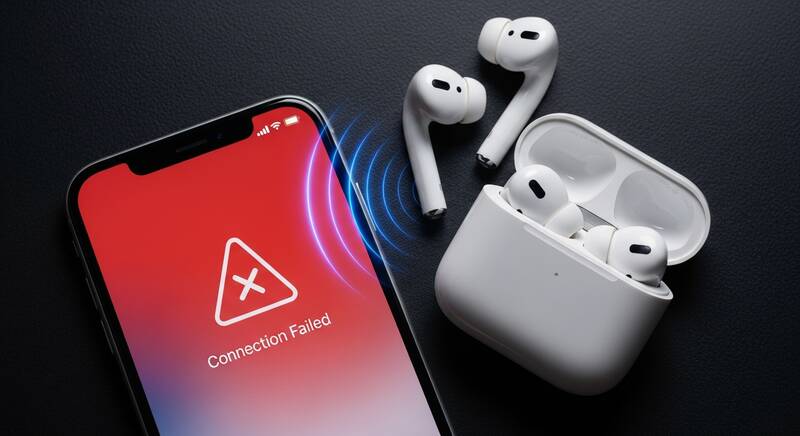
Are your AirPods not connecting to your iPhone, Mac, or Android device? This is an incredibly common issue that can happen due to Bluetooth glitches, outdated firmware, or pairing problems. Whether you have AirPods Pro 2, AirPods 3rd Gen, or the original AirPods — this guide has you covered.
Follow these step-by-step solutions to get your AirPods connected and working again in minutes.

Quick Fixes to Try First
Before diving into detailed solutions, try these quick fixes that solve the problem for most users:
- Put AirPods back in the case, close the lid, wait 15 seconds, then open and try again
- Toggle Bluetooth off and on on your device
- Make sure AirPods are charged — check the case battery too
- Move closer to your device — stay within 30 feet range
Fix 1: Reset Bluetooth Connection
The simplest fix for AirPods connection issues is to reset the Bluetooth connection:
On iPhone/iPad:
- Go to Settings → Bluetooth
- Find your AirPods in the device list
- Tap the (i) icon next to your AirPods
- Tap "Forget This Device"
- Put AirPods in the case, open the lid near your iPhone
- Follow the on-screen pairing instructions
On Mac:
- Click Apple menu → System Settings → Bluetooth
- Find your AirPods, click the (i) button
- Click "Forget This Device"
- Put AirPods in the case, open the lid
- Press and hold the setup button on the back of the case
- When the light flashes white, connect from Bluetooth settings
Fix 2: Reset Your AirPods Completely
A full reset solves most persistent AirPods pairing problems:
- Put both AirPods in the charging case
- Close the lid and wait 30 seconds
- Open the lid
- On your iPhone, go to Settings → Bluetooth → Forget This Device
- With the lid open, press and hold the setup button on the back of the case for 15 seconds
- The status light will flash amber then white
- Bring AirPods close to your iPhone — the pairing animation should appear
- Tap Connect and follow the setup
Fix 3: Update AirPods Firmware
Outdated firmware can cause connection instability:
- Connect AirPods to your iPhone
- Go to Settings → Bluetooth → tap (i) next to AirPods
- Scroll down to see the Firmware Version
- AirPods update automatically when:
- Connected to an iPhone
- Charging in their case
- iPhone is connected to Wi-Fi
- Leave AirPods charging near your iPhone overnight for the update
Fix 4: Check Audio Output Settings
Sometimes AirPods are connected but audio plays through the phone speaker instead:
- Open Control Center (swipe down from top-right on iPhone X and later)
- Long-press the audio card (music controls)
- Tap the AirPlay icon (triangle with circles)
- Select your AirPods from the list
Fix 5: Clean Your AirPods and Case
Dirty AirPods can prevent proper charging and connection:
- Clean the AirPods speaker meshes with a soft, dry brush
- Clean the charging contacts on AirPods and inside the case
- Use a dry cotton swab to clean the case connectors
- Remove any debris from the case Lightning/USB-C port
Fix 6: Connect AirPods to Android
AirPods can also connect to Android devices:
- Put AirPods in the case, open the lid
- Press and hold the setup button until light flashes white
- On your Android, go to Settings → Bluetooth
- Tap Pair new device
- Select your AirPods from the list
Note: Some features like automatic ear detection and Siri won't work on Android, but audio playback works perfectly.
Fix 7: Network Settings Reset
If Bluetooth issues persist on your iPhone, reset network settings:
- Go to Settings → General → Transfer or Reset iPhone
- Tap Reset → Reset Network Settings
- Enter your passcode
- Your iPhone will restart — then try pairing AirPods again
Note: This will forget all saved Wi-Fi passwords, so have them ready.
Troubleshooting: One AirPod Not Working
If only one AirPod connects or plays audio:
- Check if both AirPods are charged equally
- Clean the non-working AirPod's speaker mesh and contacts
- Go to Settings → Accessibility → Audio/Visual and check the Balance slider is centered
- Reset AirPods using the method above
- If one AirPod is defective, Apple offers individual AirPod replacement
Frequently Asked Questions
Why do my AirPods keep disconnecting?
Frequent disconnections are usually caused by low battery, Bluetooth interference, outdated firmware, or being too far from your device. Keep AirPods charged and stay within 30 feet of your connected device.
Can I connect AirPods to two devices at once?
AirPods Pro 2 and AirPods 3 support automatic switching between Apple devices signed into the same Apple ID. However, they can only actively play audio from one device at a time.
How do I check AirPods battery?
Open the AirPods case near your iPhone — a popup shows battery levels. You can also ask "Hey Siri, what's my AirPods battery?" or check the Battery widget on your iPhone.
Conclusion
Most AirPods connection problems can be fixed by resetting the Bluetooth connection or doing a full AirPods reset. These steps work for AirPods Pro 2, AirPods 3rd Generation, AirPods 2nd Generation, and AirPods Max. If your AirPods still won't connect after trying all these solutions, contact Apple Support for warranty service or replacement options.