Is your router not working? No internet, blinking lights, or a completely unresponsive router can bring your entire household to a standstill. Whether your router won't turn on, has no internet connection, or WiFi isn't broadcasting — this guide covers all the troubleshooting steps to fix it.
Follow these proven solutions to get your router working again without calling a technician.

Understanding Router Lights
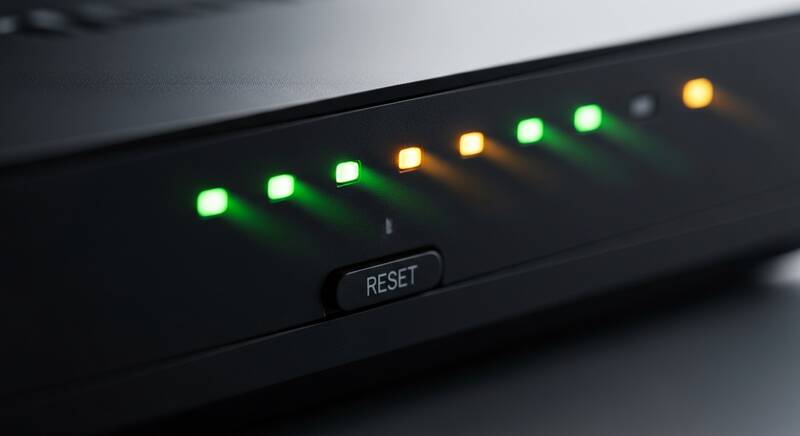
Before troubleshooting, check your router's indicator lights:
| Light | Status | Meaning |
|---|---|---|
| Power | Solid Green | Router is powered on properly |
| Power | Off | No power — check cable/outlet |
| Internet/WAN | Solid Green | Internet connection is active |
| Internet/WAN | Red/Orange | No internet from ISP |
| WiFi | Blinking | WiFi is active and transmitting |
| WiFi | Off | WiFi is disabled |
Fix 1: Power Cycle Your Router
A proper power cycle fixes most router problems:
- Unplug the router from the power outlet
- If you have a separate modem, unplug that too
- Wait 60 seconds (important — let capacitors discharge)
- Plug in the modem first, wait until all lights stabilize (2 minutes)
- Then plug in the router, wait for it to fully boot (2 minutes)
- Test your internet connection
Fix 2: Check All Cable Connections
Loose or damaged cables are a common cause of router problems:
- Check the power cable — make sure it's firmly connected
- Check the Ethernet cable from modem to router (WAN port — usually yellow or blue)
- Try a different Ethernet cable
- Make sure the cable is in the WAN/Internet port, not a LAN port
- Check for bent or damaged cable ends
Fix 3: Check if ISP Has an Outage
Before troubleshooting your router extensively, confirm your ISP is working:
- Check your ISP's website or app for outage reports (use mobile data)
- Search "[Your ISP name] outage" on Twitter/X
- Visit downdetector.com to check for reported outages
- Call your ISP's customer support to ask about outages in your area
Fix 4: Factory Reset Your Router
If your router is unresponsive or misconfigured, a factory reset restores default settings:
- Find the small reset button on the back of your router (usually a pinhole)
- Use a paperclip or pin to press and hold the reset button
- Hold for 10-15 seconds until lights blink
- Release and wait for the router to restart (2-3 minutes)
- Connect to the default WiFi network (check the label on your router)
- Reconfigure your WiFi name, password, and other settings
Important: Factory reset erases all custom settings including WiFi name, password, port forwarding, and parental controls.
Fix 5: Update Router Firmware
- Log into your router's admin panel (192.168.0.1 or 192.168.1.1)
- Enter admin credentials (default is often admin/admin — check router label)
- Find System/Administration → Firmware Update
- Click Check for updates or download firmware from manufacturer's website
- Install the update and wait for router to restart
Fix 6: Change Router Channel and Band
WiFi interference can make your router appear to not work properly:
- Log into router settings
- Go to Wireless Settings
- Change channel to 1, 6, or 11 (for 2.4GHz)
- Enable both 2.4GHz and 5GHz bands
- Set the channel width to 20MHz for 2.4GHz (more stable)
Fix 7: Check for Overheating
Routers can overheat and malfunction, especially if placed in enclosed spaces:
- Touch your router — if it's very hot, overheating may be the issue
- Move it to a well-ventilated area
- Don't stack other devices on top of the router
- Keep it away from direct sunlight and heat sources
- Let it cool down for 15-20 minutes before restarting
Fix 8: Try Connecting Directly to Modem
To confirm the problem is your router and not the internet service:
- Disconnect your router from the modem
- Connect your computer directly to the modem with an Ethernet cable
- Test internet — if it works, the router is the problem
- If internet doesn't work even connected to modem directly, call your ISP
Fix 9: Reduce Connected Devices
Too many devices can overwhelm your router:
- Check how many devices are connected in your router's admin panel
- Budget routers may struggle with more than 15-20 devices
- Disconnect devices you're not using
- Consider upgrading to a WiFi 6 router that handles more devices
When to Replace Your Router
Consider buying a new router if:
- Your router is more than 5 years old
- It doesn't support WiFi 5 (802.11ac) or WiFi 6 (802.11ax)
- It frequently needs restarting
- Your internet plan exceeds the router's maximum speed capability
- You've tried all troubleshooting steps without success
FAQ
Why is my router's internet light red?
A red internet light means your router cannot connect to your ISP. This could be an ISP outage, a problem with your modem, or an issue with your internet account. Contact your ISP for assistance.
How often should I restart my router?
Restarting your router once a week is recommended for optimal performance. Some newer routers can run for months without needing a restart.
What is the difference between a router and a modem?
A modem connects your home to your ISP's internet service. A router creates a local network (WiFi) and shares that internet connection with all your devices. Many ISPs provide a combo modem-router device.
Conclusion
A router not working is usually fixable with a simple power cycle or cable check. Start with the basics — restart your router, check cables, and verify your ISP isn't having an outage. If problems persist, update the firmware or do a factory reset. Remember, routers don't last forever — if yours is over 5 years old, it might be time for an upgrade.