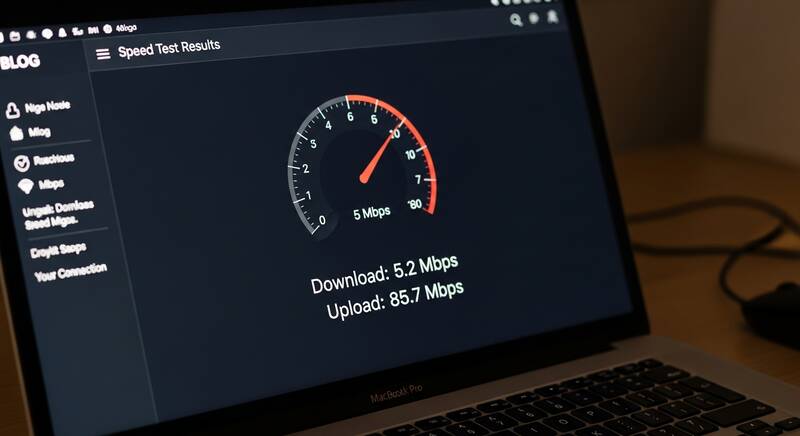
Tired of slow internet speed? Buffering videos, slow downloads, and laggy video calls can ruin your online experience. Whether you're working from home, streaming movies, or gaming — fast internet is essential in 2026.
In this guide, we'll show you 15 proven tips to fix slow internet and boost your speed significantly. These methods work for any internet connection — WiFi, Ethernet, fiber, or broadband.

First: Test Your Current Internet Speed
Before fixing anything, measure your current speed to establish a baseline:
- Visit speedtest.net or fast.com
- Click Go/Start to run the test
- Note down your Download speed, Upload speed, and Ping
- Compare with your ISP plan — you should get at least 80-90% of advertised speed
What Is Good Internet Speed?
| Usage | Recommended Speed |
|---|---|
| Basic browsing & email | 10-25 Mbps |
| HD streaming (Netflix, YouTube) | 25-50 Mbps |
| 4K streaming | 50-100 Mbps |
| Online gaming | 25-50 Mbps (low ping matters more) |
| Work from home (video calls) | 50-100 Mbps |
| Large household (5+ devices) | 200+ Mbps |
1. Restart Your Router
This is the simplest and most effective fix for slow internet:
- Unplug your router from power
- Wait 30 seconds
- Plug it back in
- Wait 1-2 minutes for it to fully boot up
- Run a speed test to check improvement
Pro Tip: Restart your router at least once a week for optimal performance.
2. Move Closer to Your Router
WiFi signal strength decreases with distance and obstacles:
- Place your router in a central location in your home
- Keep it elevated — on a shelf or desk, not on the floor
- Avoid placing near walls, metal objects, microwaves, or fish tanks
- The ideal distance is within 30 feet with minimal walls between
3. Switch to 5GHz WiFi Band
Most modern routers broadcast on two frequency bands. The 5GHz band is faster but has shorter range:
- 2.4GHz: Slower speed (up to 300 Mbps), longer range, more interference
- 5GHz: Faster speed (up to 1300+ Mbps), shorter range, less interference
Connect to the 5GHz network (usually has "5G" or "5GHz" in the network name) when you're close to the router.
4. Use an Ethernet Cable
For the fastest and most stable connection, use a wired Ethernet cable:
- Ethernet provides full speed without WiFi signal loss
- Use Cat 6 or Cat 6e cables for gigabit speeds
- Ideal for gaming, streaming, and work-from-home setups
- Connect directly from your router to your computer
5. Disconnect Unused Devices
Every connected device shares your internet bandwidth:
- Check how many devices are connected to your WiFi
- Disconnect devices you're not actively using
- Smart home devices (cameras, speakers, bulbs) all use bandwidth
- Consider setting up a separate network for IoT devices
6. Update Router Firmware
- Open a browser and go to your router's admin page (usually 192.168.0.1 or 192.168.1.1)
- Log in with your admin credentials
- Look for Firmware Update or Software Update section
- Download and install the latest firmware
7. Change WiFi Channel
In apartments and crowded areas, WiFi channels can be congested:
- Log into your router settings
- Go to Wireless Settings
- Change the channel from Auto to a specific one
- For 2.4GHz, try channels 1, 6, or 11 (non-overlapping)
- Use a free WiFi analyzer app to find the least crowded channel
8. Clear Browser Cache
A full browser cache can slow down your browsing experience:
- In Chrome: Ctrl + Shift + Delete
- Select "All time" as time range
- Check Cached images and files
- Click Clear data
9. Scan for Malware
Malware can consume bandwidth by running hidden downloads or sending data:
- Run a full system antivirus scan
- Check for suspicious programs in Task Manager
- Look at Network usage in Task Manager to identify bandwidth-hogging processes
10. Use a WiFi Extender or Mesh System
If your home is large or has many walls, consider:
- WiFi Range Extender: Affordable, extends signal to dead zones ($20-50)
- Mesh WiFi System: Best coverage, seamless roaming, higher cost ($150-400)
- Powerline Adapter: Uses electrical wiring to extend network ($30-60)
11. Disable Bandwidth-Heavy Background Apps
- Pause cloud backup services (OneDrive, Google Drive, iCloud)
- Stop automatic Windows/software updates during important tasks
- Close streaming apps on other devices
- Disable auto-play videos in social media apps
12. Change DNS Server
Faster DNS servers can improve browsing speed:
- Google DNS: 8.8.8.8 / 8.8.4.4
- Cloudflare DNS: 1.1.1.1 / 1.0.0.1 (often the fastest)
- OpenDNS: 208.67.222.222 / 208.67.220.220
13. Check for ISP Throttling
Some ISPs throttle speeds for specific services:
- Use a VPN and run a speed test — if speed improves, your ISP may be throttling
- Test at different times of day — peak hours (7-11 PM) often have slower speeds
- Contact your ISP if speeds are consistently below your plan
14. Upgrade Your Router
Old routers can't handle modern internet speeds:
- If your router is over 5 years old, consider upgrading
- Look for WiFi 6 (802.11ax) routers for best performance
- Make sure the router supports your internet plan speed
15. Upgrade Your Internet Plan
If none of the above helps, you may need a faster internet plan:
- Check your current plan speed vs. what you actually need
- Compare plans from different ISPs in your area
- Consider fiber optic if available — it's the fastest option
FAQ
Why is my internet so slow at night?
Internet speeds often drop during peak hours (7-11 PM) because many people in your area are using the internet simultaneously. This is called network congestion.
Does a VPN slow down internet?
Yes, VPNs can slightly reduce speed because data is encrypted and routed through a remote server. Premium VPNs typically reduce speed by only 10-20%.
Conclusion
Fixing slow internet speed often starts with simple steps — restarting your router, switching to 5GHz, and using Ethernet. For bigger improvements, update your router firmware, change DNS servers, and consider upgrading your equipment. Follow these 15 tips and enjoy faster, more reliable internet!