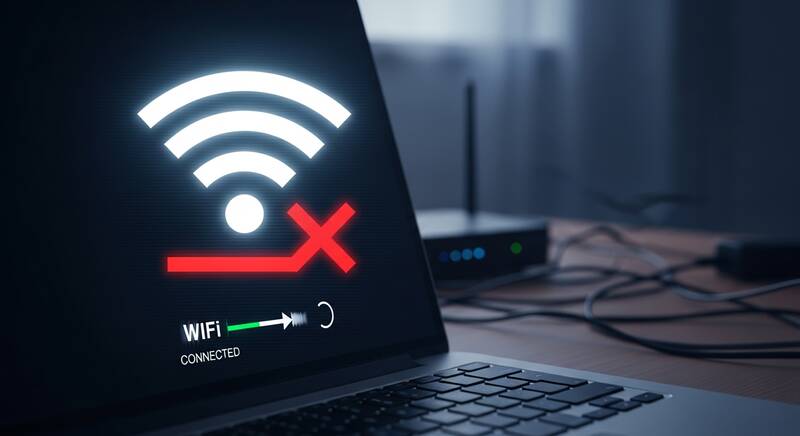
Does your WiFi keep disconnecting randomly? This is one of the most annoying network problems — you're in the middle of a video call, watching a movie, or working on something important, and suddenly your WiFi drops. It reconnects after a few seconds or minutes, but then disconnects again.
In this guide, we'll show you 10 proven fixes to stop WiFi from disconnecting on Windows 10 and Windows 11.

Why Does WiFi Keep Disconnecting?
- Power management turning off WiFi adapter to save battery
- Outdated WiFi drivers
- WiFi signal interference from other devices
- Router firmware issues
- Network congestion — too many devices connected
- IP address conflicts
- Faulty WiFi adapter
Fix 1: Disable Power Management for WiFi Adapter
This is the #1 fix for WiFi disconnection issues. Windows saves power by turning off the WiFi adapter, causing disconnections:
- Open Device Manager (right-click Start button)
- Expand Network adapters
- Right-click your WiFi adapter → Properties
- Go to the Power Management tab
- Uncheck "Allow the computer to turn off this device to save power"
- Click OK
Fix 2: Set WiFi to Private Network
Public network profiles have stricter settings that can cause disconnections:
- Go to Settings → Network & Internet → Wi-Fi
- Click on your connected network
- Set Network profile type to "Private network"
Fix 3: Forget and Reconnect
- Go to Settings → Network & Internet → Wi-Fi → Manage known networks
- Find your network and click Forget
- Scan for networks and reconnect with your password
- Check the "Connect automatically" box
Fix 4: Update WiFi Driver
- Open Device Manager → Network adapters
- Right-click WiFi adapter → Update driver
- Select Search automatically for drivers
- If no update found, visit your laptop manufacturer's website to download the latest WiFi driver
- Restart your laptop
Fix 5: Change WiFi Channel on Router
Crowded WiFi channels cause interference and disconnections, especially in apartments:
- Log into your router settings (192.168.0.1 or 192.168.1.1)
- Go to Wireless Settings
- Change the channel from Auto to a specific one
- For 2.4GHz: Try channels 1, 6, or 11
- For 5GHz: Try channels 36, 40, 44, or 48
- Save and restart your router
Fix 6: Reset TCP/IP and Winsock
- Open Command Prompt as Administrator
- Run these commands:
netsh winsock reset netsh int ip reset ipconfig /flushdns ipconfig /release ipconfig /renew - Restart your computer
Fix 7: Disable WiFi Sense
WiFi Sense (or WiFi hotspot features) can interfere with your connection:
- Go to Settings → Network & Internet → Wi-Fi
- Scroll down to find hotspot or sharing settings
- Turn off any automatic network sharing features
Fix 8: Change Power Plan to High Performance
- Open Control Panel → Power Options
- Select "High Performance" plan
- If not visible, click "Show additional plans"
- This prevents the system from throttling the WiFi adapter
Fix 9: Restart Router and Update Firmware
- Restart your router (unplug for 30 seconds)
- Log into router settings and check for firmware updates
- If your router is over 5 years old, consider replacing it
- Try connecting to a different WiFi network to test if the issue is your router
Fix 10: Network Reset
As a last resort, reset all network settings:
- Go to Settings → Network & Internet → Advanced network settings
- Click Network reset
- Click Reset now
- Your computer will restart
- You'll need to reconnect to WiFi and enter your password
FAQ
Why does my WiFi disconnect when my laptop goes to sleep?
This is caused by power management settings turning off the WiFi adapter. Fix 1 in this guide (disabling power management for the WiFi adapter) will solve this problem.
Why does my WiFi disconnect at the same time every day?
This could be due to DHCP lease expiration. Your router assigns temporary IP addresses that need renewal. Contact your ISP or set a static IP address in your network settings.
Should I use 2.4GHz or 5GHz to prevent disconnections?
Use 5GHz when close to the router — it has less interference. Use 2.4GHz when you're far from the router, as it has better range through walls.
Conclusion
If your WiFi keeps disconnecting, the most common fix is disabling power management for your WiFi adapter (Fix 1). This prevents Windows from turning off WiFi to save battery. If that doesn't help, update your WiFi driver and change the WiFi channel on your router. These three fixes solve WiFi disconnection issues for the vast majority of users.