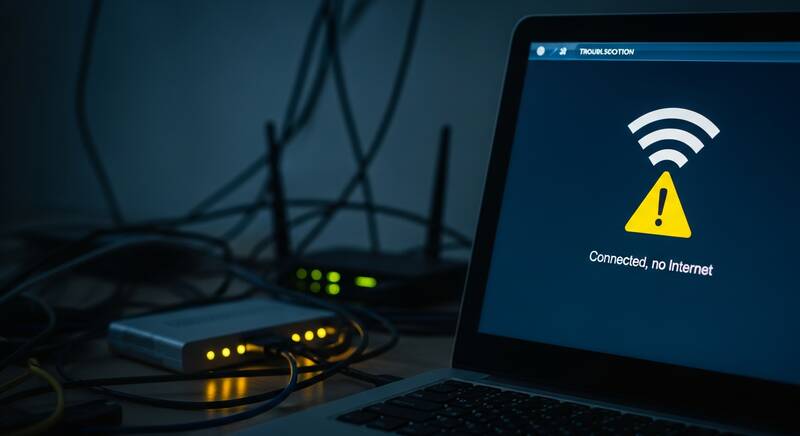
One of the most frustrating network problems is when your device shows WiFi connected but no internet. You can see the WiFi icon, your device says it's connected, but you can't open any website or use any online app. This issue affects Windows, Mac, iPhone, and Android devices.
In this comprehensive guide, we'll explain why this happens and show you 12 proven methods to fix WiFi connected but no internet access.

Why Does WiFi Show Connected But No Internet?
This problem occurs when your device successfully connects to the WiFi router, but the router cannot connect to the internet. Common causes include:
- ISP (Internet Service Provider) outage
- Router or modem issues
- IP address conflicts
- DNS server problems
- Incorrect network settings
- Firewall or antivirus blocking
- WiFi authentication issues
Fix 1: Restart Your Router and Modem
The classic "turn it off and on again" works surprisingly well for internet problems:
- Unplug both your router and modem from power
- Wait 30 seconds
- Plug in the modem first and wait for all lights to stabilize (1-2 minutes)
- Then plug in the router and wait for it to fully boot up
- Try connecting again
Why this works: Restarting clears the router's memory, refreshes the connection to your ISP, and resolves temporary glitches.
Fix 2: Forget and Reconnect to WiFi
On Windows:
- Click the WiFi icon in the taskbar
- Right-click your network → Forget
- Reconnect by selecting the network and entering the password
On iPhone:
- Settings → Wi-Fi → tap the (i) next to your network
- Tap "Forget This Network"
- Reconnect with password
On Android:
- Settings → Wi-Fi → long-press your network
- Tap "Forget network"
- Reconnect with password
Fix 3: Flush DNS Cache
Corrupted DNS cache can prevent internet access even when connected to WiFi:
On Windows:
- Open Command Prompt as Administrator
- Type these commands one by one:
ipconfig /flushdns ipconfig /release ipconfig /renew - Restart your computer
On Mac:
- Open Terminal
- Type:
sudo dscacheutil -flushcache; sudo killall -HUP mDNSResponder - Enter your password when prompted
Fix 4: Change DNS Server
Your ISP's DNS server may be slow or down. Switch to Google DNS or Cloudflare DNS:
On Windows:
- Go to Settings → Network & Internet → Wi-Fi → Hardware properties
- Click Edit next to DNS server assignment
- Set to Manual and enter:
- Preferred DNS: 8.8.8.8 (Google) or 1.1.1.1 (Cloudflare)
- Alternate DNS: 8.8.4.4 (Google) or 1.0.0.1 (Cloudflare)
Fix 5: Disable and Re-enable WiFi Adapter
- Press Windows + R, type ncpa.cpl, press Enter
- Right-click your Wi-Fi adapter → Disable
- Wait 10 seconds
- Right-click again → Enable
Fix 6: Run Network Troubleshooter
On Windows:
- Go to Settings → System → Troubleshoot → Other troubleshooters
- Run Internet Connections troubleshooter
- Also run Network Adapter troubleshooter
- Follow any recommended fixes
Fix 7: Reset TCP/IP Stack
Resetting the network stack can fix deep network configuration issues:
- Open Command Prompt as Administrator
- Run these commands:
netsh winsock reset netsh int ip reset netsh int tcp reset - Restart your computer
Fix 8: Disable VPN and Proxy
VPN or proxy settings can interfere with your internet connection:
- Disconnect from any VPN service
- Go to Settings → Network & Internet → Proxy
- Make sure "Use a proxy server" is turned off
- Turn off "Automatically detect settings" and turn it back on
Fix 9: Check if Other Devices Have Internet
This helps determine if the problem is with your device or the network:
- Try connecting a different device to the same WiFi
- If no devices have internet → problem is with your router/ISP
- If other devices work fine → problem is with your specific device
Fix 10: Update WiFi Driver
- Open Device Manager
- Expand Network adapters
- Right-click your WiFi adapter → Update driver
- Select Search automatically for drivers
- Restart your computer
Fix 11: Disable Firewall Temporarily
Your firewall might be blocking internet access:
- Open Windows Security → Firewall & network protection
- Click on your active network
- Toggle off Microsoft Defender Firewall
- Check if internet works now
- If yes, add proper exceptions and re-enable the firewall
Fix 12: Contact Your ISP
If nothing works, the problem may be on your ISP's end:
- Check your ISP's outage map or status page
- Call your ISP's technical support
- Ask them to reset your connection from their end
- Check if your internet plan has expired or needs renewal
FAQ
Why does my WiFi say connected but no internet on my phone?
This usually happens due to router issues, DNS problems, or IP conflicts. Try forgetting the network and reconnecting, or restart your router.
How do I fix WiFi connected but no internet on Windows 11?
Run the Network troubleshooter, flush DNS cache, reset TCP/IP stack, and check if your WiFi driver is updated. These steps fix the issue in most cases.
Conclusion
WiFi connected but no internet is usually fixable by restarting your router, flushing DNS cache, or changing DNS servers. Start with the simple fixes first and work your way through the list. If no devices on your network have internet, contact your ISP for assistance.