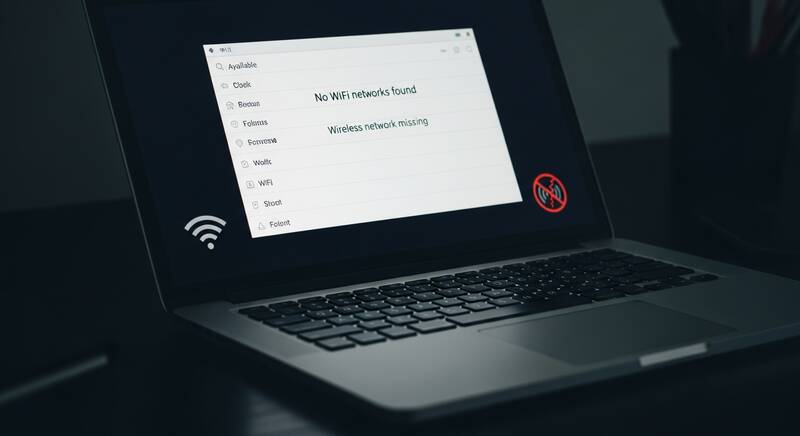
Is WiFi not showing up on your laptop? When you click the network icon and see no available WiFi networks, it can feel like your laptop's wireless capability has completely disappeared. This problem commonly affects Windows 10 and Windows 11 laptops from all brands.
Don't worry — this issue is usually fixable with simple troubleshooting steps. Follow this guide to get your WiFi networks visible again.

Why Is WiFi Not Showing Up?
- WiFi adapter is disabled — accidentally turned off
- Airplane mode is on — blocks all wireless connections
- WiFi driver issues — outdated or corrupted drivers
- WLAN AutoConfig service stopped
- Hardware switch turned off — some laptops have physical WiFi buttons
- Router not broadcasting SSID
Fix 1: Check Airplane Mode
Airplane mode disables all wireless connections including WiFi:
- Click the network icon in the taskbar
- Check if Airplane mode is enabled (highlighted)
- If yes, click to turn it off
- You can also press Windows + A to open Action Center and toggle Airplane mode
Fix 2: Enable WiFi Adapter
Your WiFi adapter may have been accidentally disabled:
- Press Windows + R, type ncpa.cpl, press Enter
- Look for your Wi-Fi adapter
- If it shows "Disabled" (grayed out), right-click it → Enable
- WiFi networks should now appear
Fix 3: Check Physical WiFi Switch
Some laptops have a physical switch or function key to toggle WiFi:
- Look for a WiFi switch on the side of your laptop
- Try pressing Fn + F2 (or whichever F-key has the WiFi icon)
- Common key combinations: Fn + F2, Fn + F3, Fn + F5, Fn + F12
- Look for a wireless icon on one of the function keys
Fix 4: Run Network Troubleshooter
- Go to Settings → System → Troubleshoot
- Click Other troubleshooters
- Run "Network Adapter" troubleshooter
- Select Wi-Fi when prompted
- Follow the recommended fixes
Fix 5: Restart WLAN AutoConfig Service
The WLAN AutoConfig service manages WiFi connections. If it stops, WiFi won't work:
- Press Windows + R, type services.msc, press Enter
- Scroll down to find "WLAN AutoConfig"
- Right-click it → Properties
- Set Startup type to "Automatic"
- Click Start if the service is stopped
- Click Apply → OK
Fix 6: Update WiFi Driver
- Right-click Start → Device Manager
- Expand Network adapters
- Right-click your WiFi adapter (Intel, Realtek, Qualcomm, etc.)
- Select Update driver → Search automatically
- Restart your laptop
Fix 7: Reinstall WiFi Driver
If updating didn't help, try a complete reinstall:
- In Device Manager → Network adapters
- Right-click WiFi adapter → Uninstall device
- Check "Delete the driver software"
- Click Uninstall
- Click Action → Scan for hardware changes (or restart your laptop)
- Windows will automatically reinstall the driver
Fix 8: Reset Network Settings
A complete network reset can fix persistent WiFi visibility issues:
- Go to Settings → Network & Internet → Advanced network settings
- Click Network reset
- Click Reset now
- Your laptop will restart and reset all network adapters
Note: You'll need to re-enter WiFi passwords after a network reset.
Fix 9: Check if Router Is Broadcasting
Your router may have hidden SSID broadcasting turned off:
- Log into your router settings (192.168.0.1 or 192.168.1.1)
- Go to Wireless settings
- Make sure "Enable SSID Broadcast" is turned on
- Save settings and restart the router
Connect to a Hidden Network Manually:
- Go to Settings → Network & Internet → Wi-Fi
- Click "Manage known networks"
- Click "Add network"
- Enter the network name (SSID) and password manually
Fix 10: System Restore
If WiFi was working before and suddenly stopped, use System Restore:
- Search for "Create a restore point"
- Click System Restore
- Choose a restore point from when WiFi was working
- Follow the prompts to restore
FAQ
Why can't my laptop find any WiFi networks?
The most common causes are Airplane mode being on, WiFi adapter disabled, or outdated WiFi drivers. Check these three things first.
WiFi shows on phone but not laptop — why?
This confirms the WiFi network is working. The problem is with your laptop's WiFi adapter or driver. Update or reinstall the WiFi driver to fix it.
Conclusion
If WiFi is not showing up on your laptop, start by checking Airplane mode and the WiFi adapter status — these are the most common causes. If the problem persists, update your WiFi driver, restart the WLAN AutoConfig service, or do a network reset. These solutions work for all Windows 10/11 laptops.